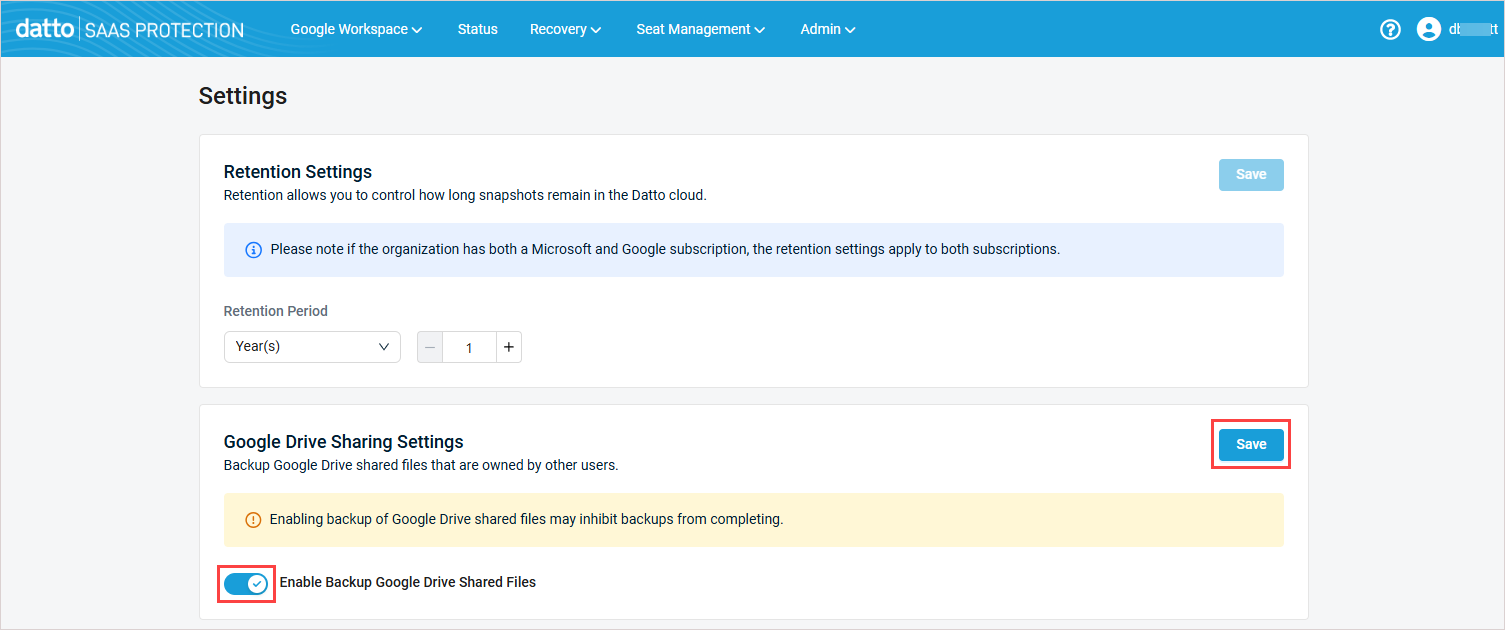
Setting the commitment, retention period, license cap, and backup of shared Drive files
Use the organization's Settings page to manage these settings: commitment, retention, license cap, and
Retention allows you to control how long snapshots remain in the Kaseya cloud. The license cap allows you to define how many licenses the SaaS Protection organization can consume from your available license pool. These settings are configured during the account creation process and can be edited later from the SaaS Protection Status page or from the organization's Settings page.
- If an organization has SaaS Protection accounts for both M365 and Google Workspace, the retention and license cap settings apply to both.
- For Backupify or SaaS Protection environments with a single organization, you must configure these settings from the organization's Settings page. The SaaS Protection Status page does not apply to Backupify or single organization environments.
See the following procedures for details:
 Setting the commitment and retention period from the SaaS Protection Status page
- Log in to your multi-org SaaS Protection environment as an administrator. The SaaS Protection Status page displays.
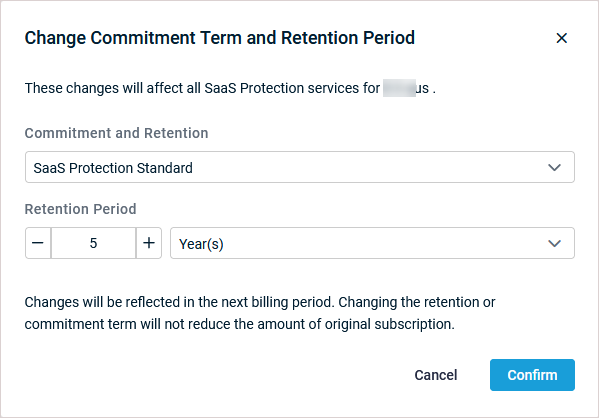
- On the SaaS Protection Status > Overview tab, locate the organization and click its
 icon.
icon. - Select Change Commitment Term and Retention Period.
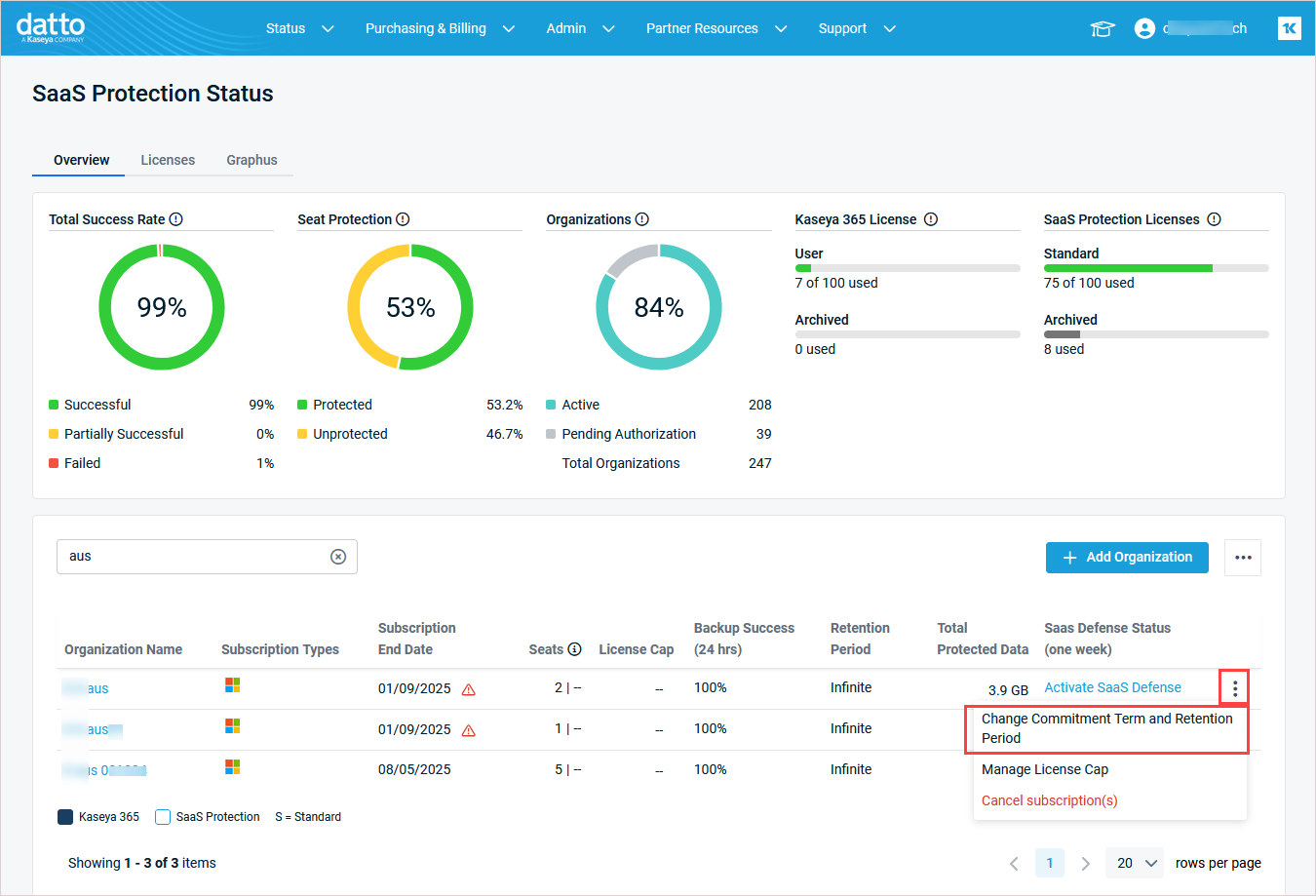
- In the dialog box that displays, edit the Commitment and Retention and Retention Period settings as needed. (Refer to Understanding the pricing model for details on how commitment and retention settings work for your subscription.)
IMPORTANT If you decrease the retention period, data will be pruned immediately in accordance with the new retention period.
- Click Confirm.
Setting the license cap from the SaaS Protection Status page
- Log in to your multi-org SaaS Protection environment as an administrator. The SaaS Protection Status page displays.
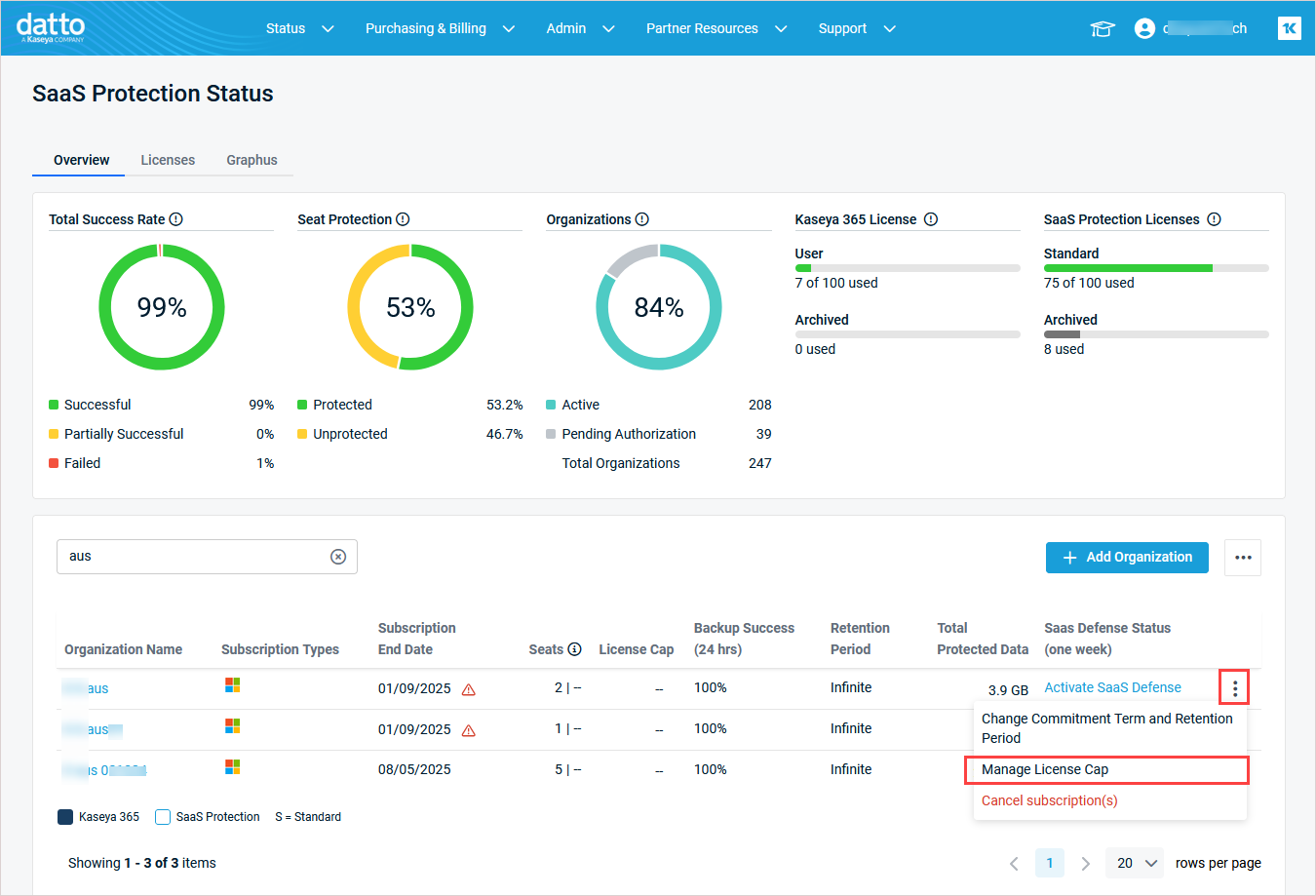
- On the SaaS Protection Status > Overview tab, locate the organization and click its icon.
- Select Manage License Cap.
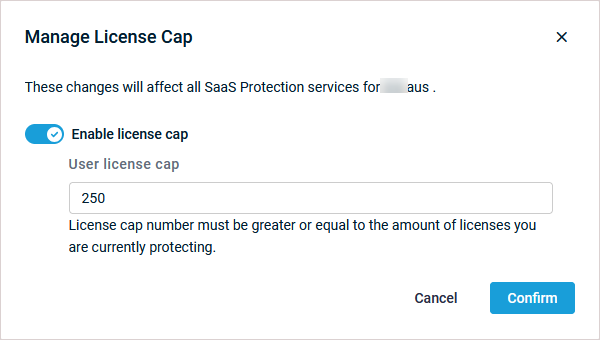
- In the dialog box that displays, turn on the Enable license cap toggle to enable the feature. Once enabled, you can edit the value in the User license cap field.
NOTES
- The license cap number you enter must be greater or equal to the amount of licenses you are currently protecting.
- If an organization has reached its license cap number but wants to reduce the existing cap limit, the number of protected seats must be reduced to the desired cap limit (or lower). Then, the cap number can be reduced to the desired limit.
- Click Confirm.
-
The license cap feature is enabled.
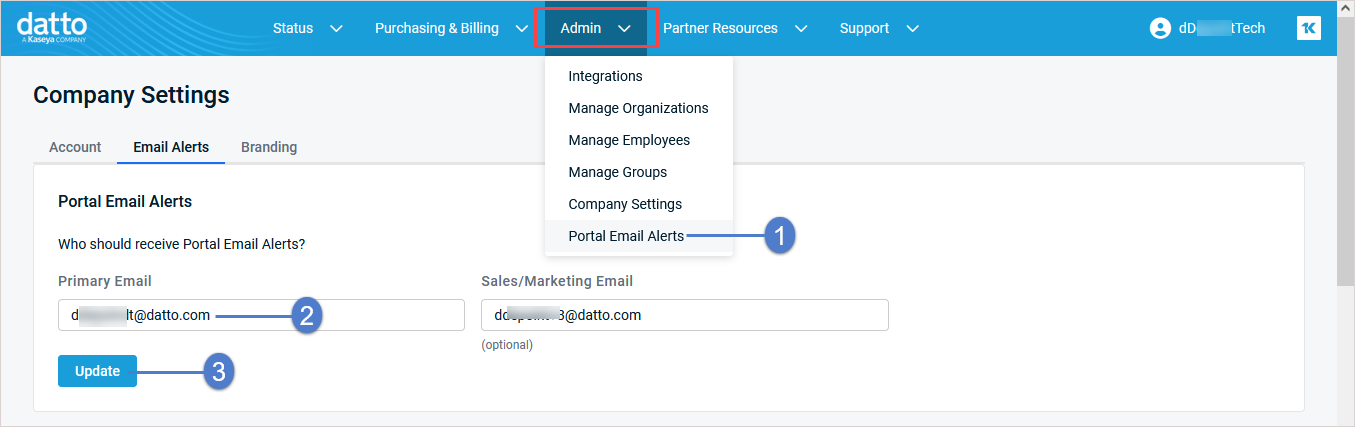
If the license cap is reached, an email alert is sent to the Datto Partner Portal's Primary Email recipient. You can view or modify this recipient from the portal's Company Settings page by selecting Admin > Portal Email Alerts as shown here:
 Setting the retention period from the organization's Settings page
- Access the organization view by doing one of the following:
Log in to Backupify or your single-org SaaS Protection environment as an administrator. Your organization's Overview page displays.
OR
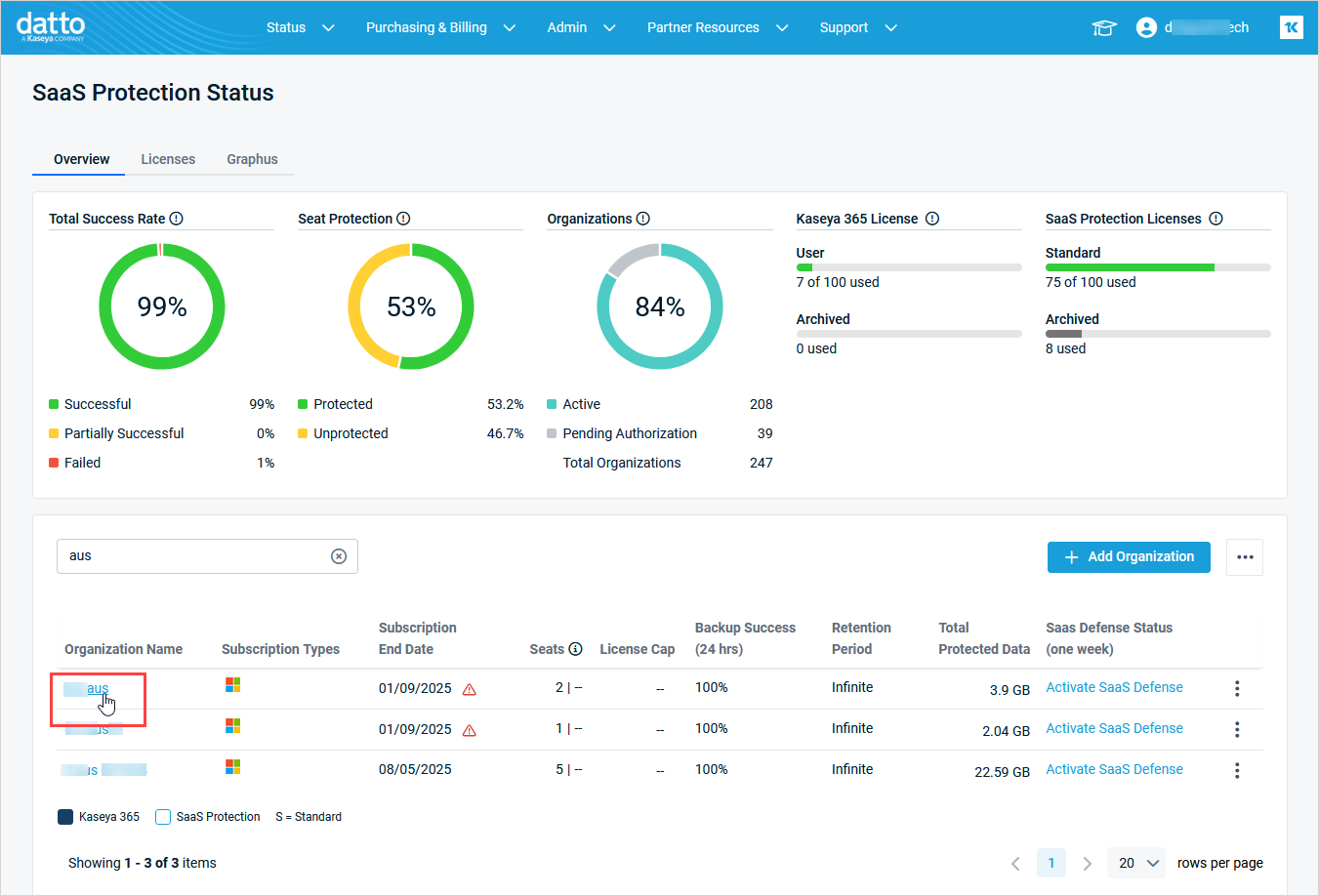
Log in to your multi-org SaaS Protection environment as an administrator. On the SaaS Protection Status > Overview tab, click your organization's name in the list.
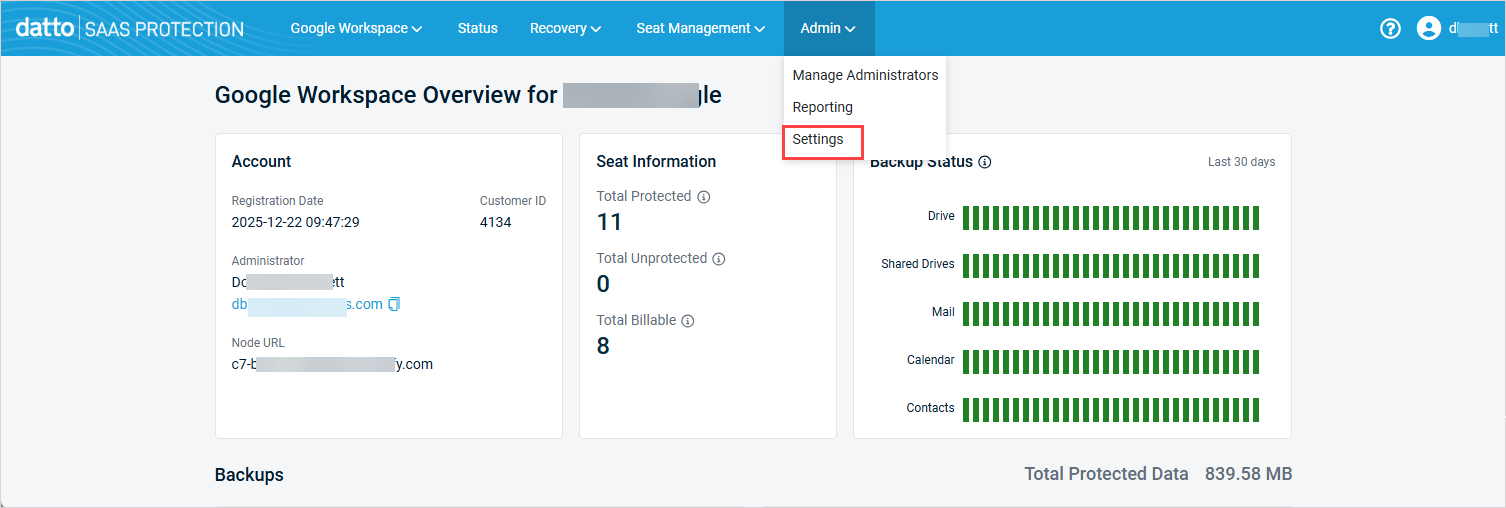
- In the top navigation menu, click Admin and select Settings.
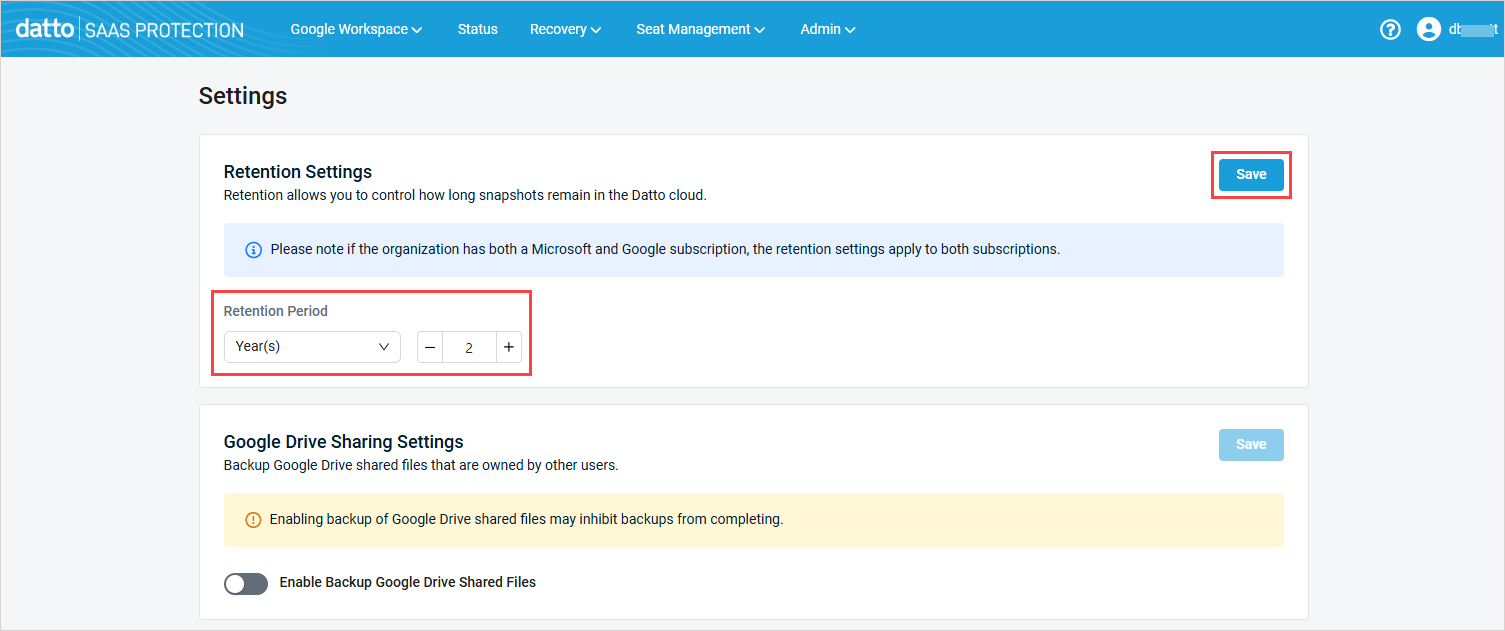
- On the Settings page, edit the Retention Period settings as needed. (Refer to Understanding the pricing model for details on how retention settings work for your subscription.)
IMPORTANT If you decrease the retention period, data will be pruned immediately in accordance with the new retention period.
- Click Save.
Setting the license cap from the organization's Settings page
- Access the organization view by doing one of the following:
Log in to Backupify or your single-org SaaS Protection environment as an administrator. Your organization's Overview page displays.
OR
Log in to your multi-org SaaS Protection environment as an administrator. On the SaaS Protection Status > Overview tab, click your organization's name in the list.
- In the top navigation menu, click Admin and select Settings.
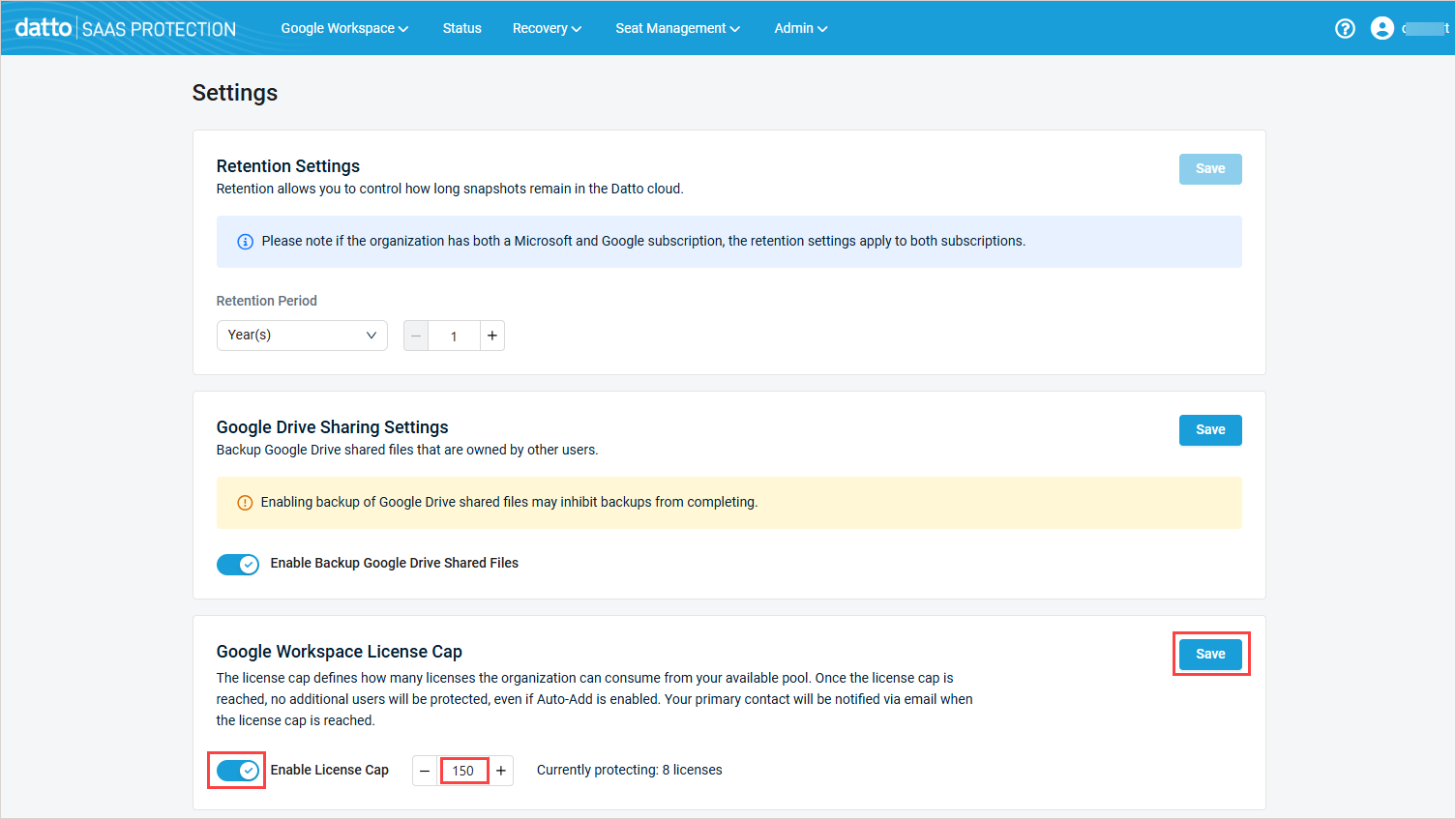
- On the Settings page, turn on the Enable license cap toggle and enter a number in the field to the right.
NOTES
- The license cap number you enter must be greater or equal to the amount of licenses you are currently protecting.
- If an organization has reached its license cap number but wants to reduce the existing cap limit, the number of protected seats must be reduced to the desired cap limit (or lower). Then, the cap number can be reduced to the desired limit.
- Click Save.
Setting backup of shared Drive files from the organization's Settings page
Use this procedure to include or exclude from backup Drive files that were shared with the user (e.g., Drive "Shared with me" files).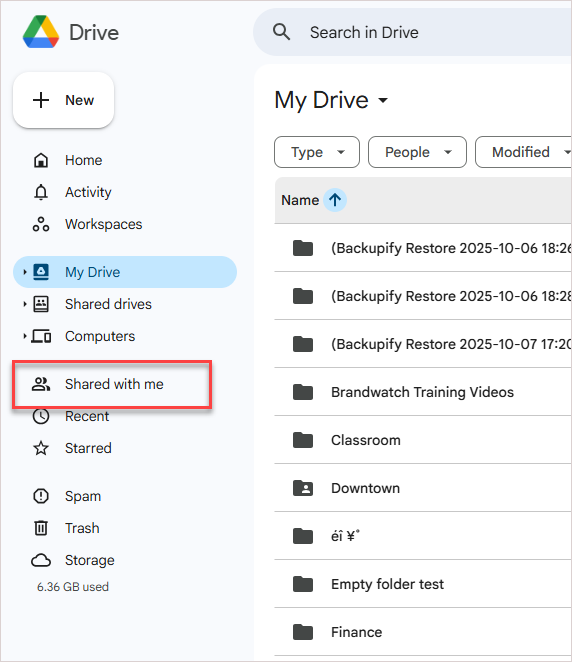
- Access the organization view by doing one of the following:
Log in to Backupify or your single-org SaaS Protection environment as an administrator. Your organization's Overview page displays.
OR
Log in to your multi-org SaaS Protection environment as an administrator. On the SaaS Protection Status > Overview tab, click your organization's name in the list.
- In the top navigation menu, click Admin and select Settings.
- On the Settings page, do one of the following:
Turn on the Enable Backup Google Drive Shared Files toggle to include in a user's backup any shared files that are owned by other users.
Turn off the Enable Backup Google Drive Shared Files toggle to exclude from a user's backup any shared files that are owned by other users.
- Click Save.