Not-for-Resale (NFR) program for Datto SaaS Protection
IMPORTANT This article does not apply to Backupify customers.
This article explains how to provision Datto SaaS Protection Not-for-Resale (NFR) for your organization.
Environment
- Datto SaaS Protection for M365 (all regions)
- Datto SaaS Protection for Google Workspace (all regions)
- Datto SaaS Defense
Description
Kaseya offers its paying partners access to Datto SaaS Protection for M365 and Datto SaaS Protection for Google Workspace at no charge for training and demonstration purposes through a Not-for-Resale (NFR) program. Once the partner has a paid SaaS Protection subscription with at least one license, they can deploy an NFR organization.
- Only partners with an active SaaS Protection subscription and administrator permissions can request, access, and view an NFR account.
- Partners can have one M365 tenant, one Google Workspace domain, or both an M365 tenant and a Google Workspace domain as NFR for their own company domain.
- To have both an M365 tenant and a Google Workspace domain as NFR for their own company domain, the partner must add both products under their own company's organization name. When adding the second product under the same organization name as the first, the NFR option displays.
- To convert an existing account to an NFR account that aligns with our NFR policy, contact your account manager.
- The Backupify app must be installed in your Google Workspace environment before you can add your NFR organization. (See Installing the Backupify app from the Google Workspace Store).
- It is recommended that you review the entire article before performing the required tasks as you may need to obtain information from your organization to complete certain steps.
Adding an NFR organization
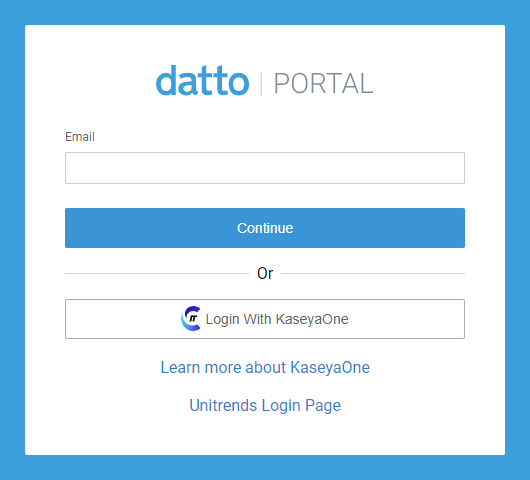
- Log in to Datto Partner Portal as an administrator.
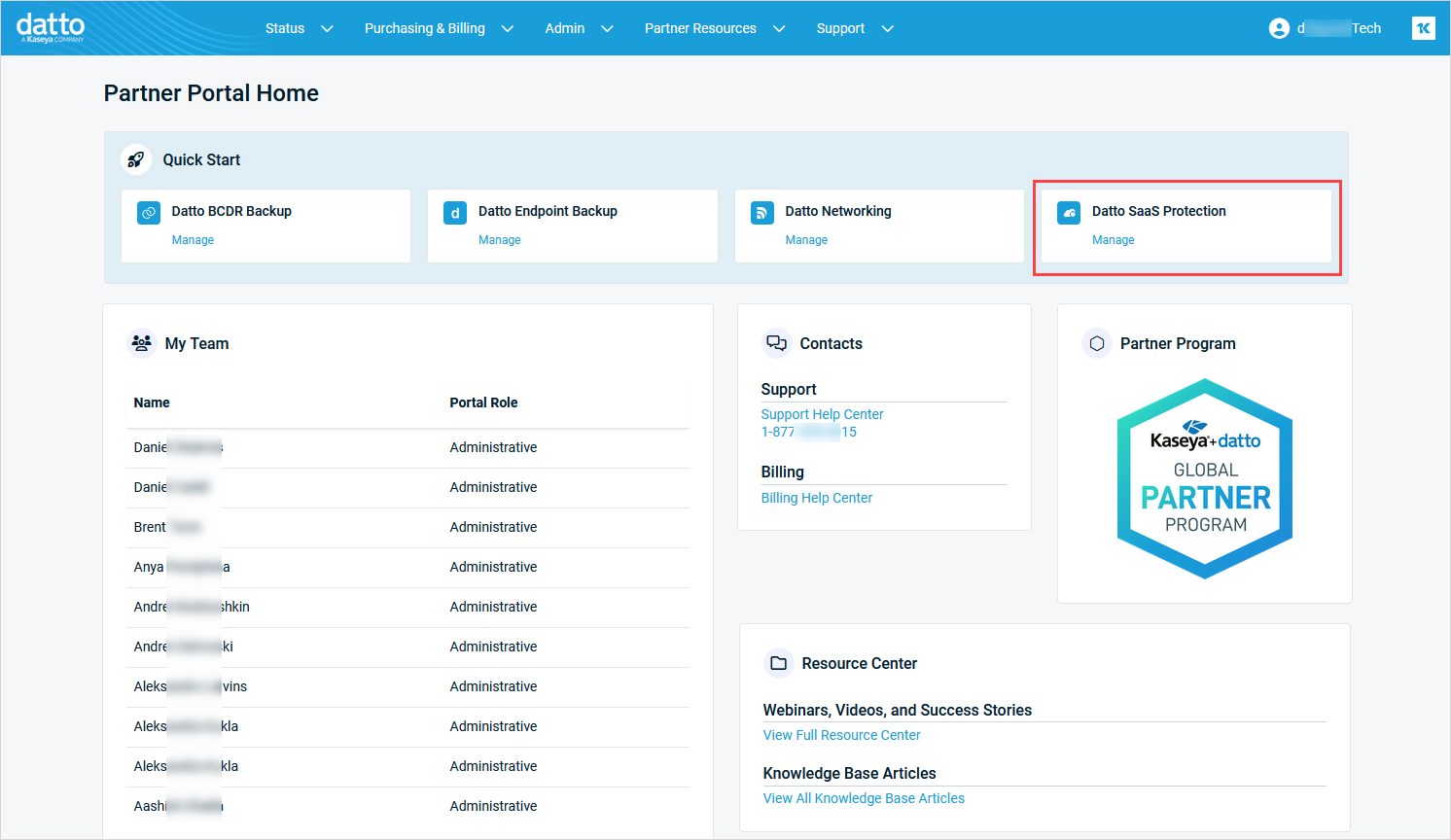
- The Partner Portal Home page displays. Click Manage under Datto SaaS Protection.
-
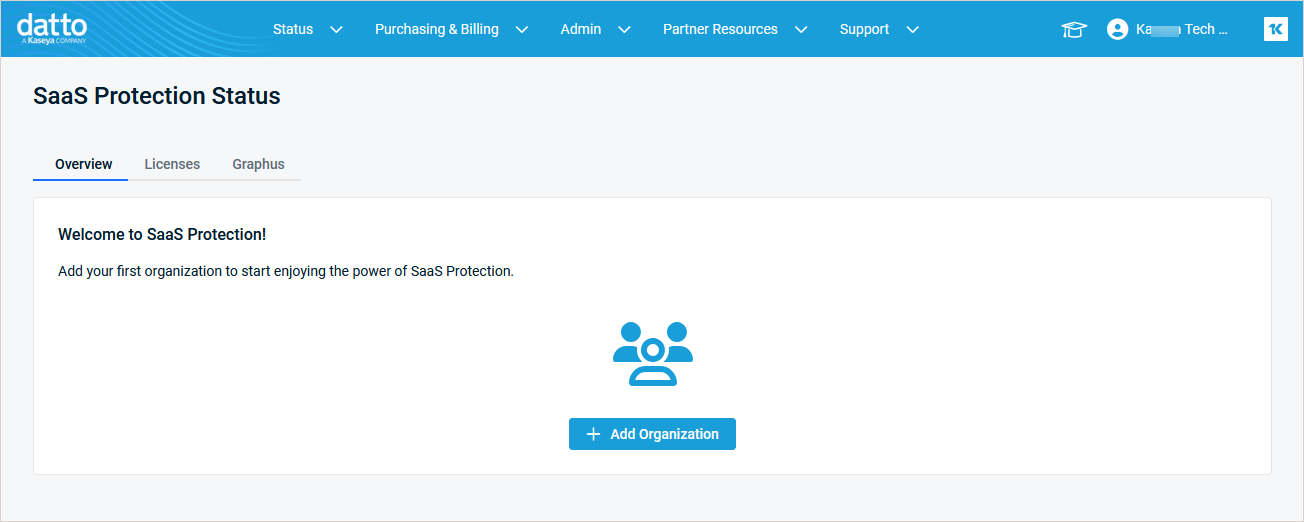
You are logged in to SaaS Protection and the SaaS Protection Status page displays.
-
On the SaaS Protection Status page, click the Add SaaS Protection Organization button.
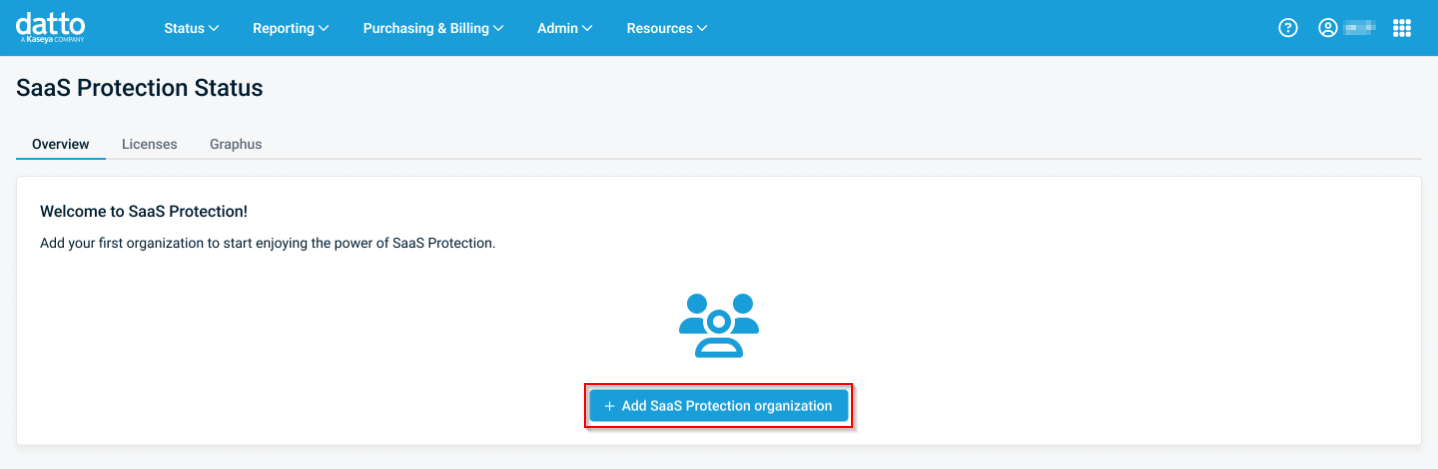
NOTE By default, the Add SaaS Protection Organization button is only visible to Admins. If you are an Admin and you wish to make this function available to a technician at your company, contact Support through the Kaseya Helpdesk.
-
The Add SaaS Protection Organization dialog displays. Fill out the following sections:
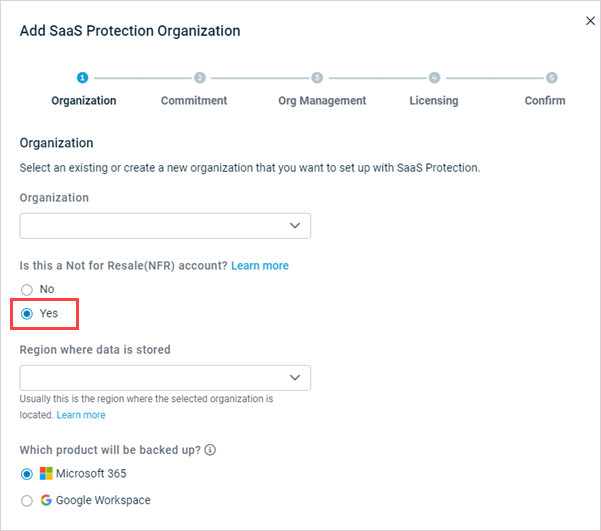
Organization
In the Organization step, you will define the product to be backed up, storage region, NFR status, and the organization to link to the new SaaS Protection account.
- In the Organization dialog box select or add your own company's organization to link the SaaS Protection account to.
- If creating a new organization, enter your company name into the Organization field.
- To link the new SaaS account to your existing organization which already has a SaaS account linked to it, select that existing organization. (For example, do this to add an NFR Google SaaS account to your company's organization that already has an NFR Microsoft 365 SaaS account linked to it. This is known as a dual provisioned account). Doing so will restrict some options (region, commitment, licensing) in the creation process as backup configuration settings must be the same across all domains in an organization. These settings have been pre-selected and cannot be changed.
- For Is this a Not for Resale (NFR) account?, select Yes.
- In the Region where data is stored list, select the region where the organization's backups should be stored. The organization may have policies regarding this. Kaseya's cloud servers are located in each of the regions listed. The organization's storage location cannot be changed after the account has been created.
- For Select which product will be backed up?, select the applicable option.
- Click Next to proceed.
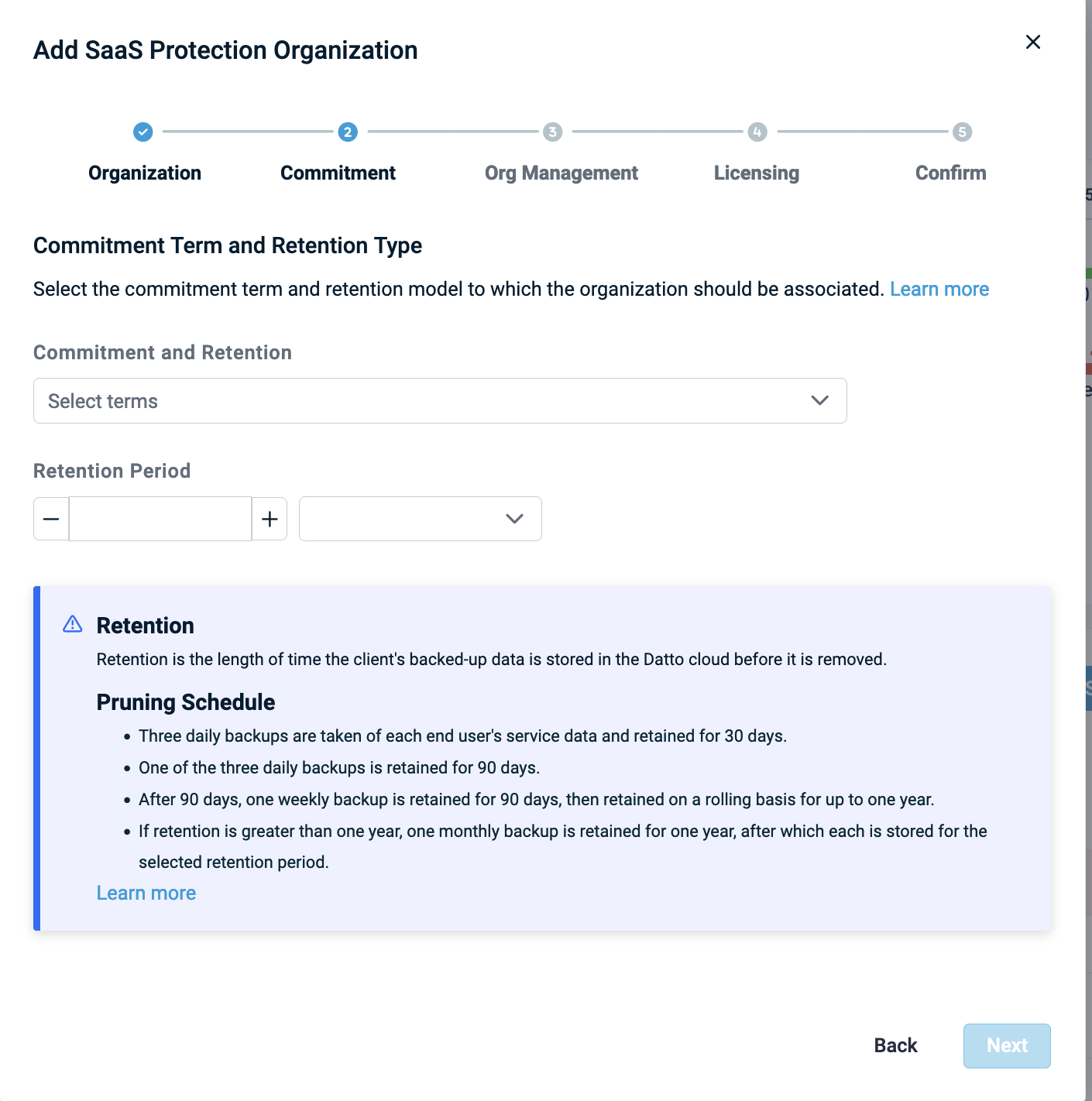
Commitment
This page opens with a description of the retention and the pruning schedule. The retention setting determines how long historical backup data is retained. Choosing the Infinite setting will retain backup history until the subscription is canceled.
Select the commitment term and retention model for the organization. For more information, see Understanding the pricing model.
- Define the Commitment and Retention policy from within the dropdown menu.
- If necessary, adjust the Retention Period value and modifier.
- Click Next to proceed.
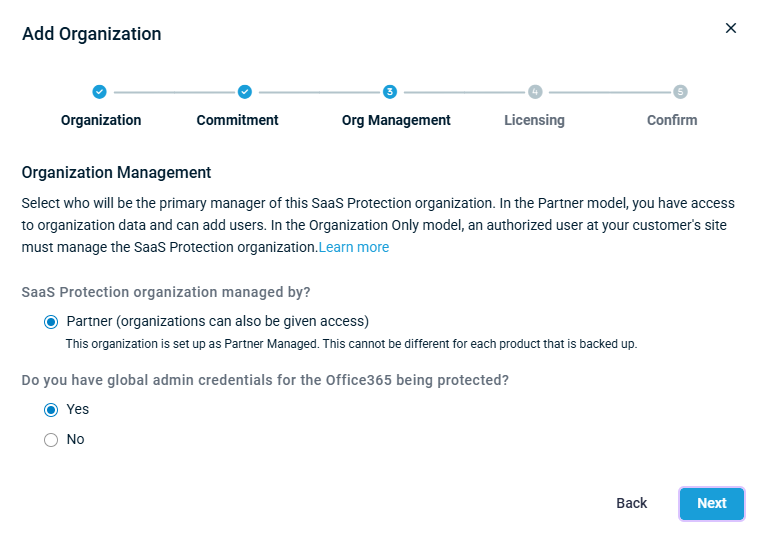
Organization Management
Make the following selections in the Organization Management dialog:
- In SaaS Protection organization managed by?, Partner is selected (as NFR accounts must be partner managed).
- For Do you have global admin credentials for the product being protected?, select Yes or No.
If No is selected, enter an email address in the Email field. An email will be sent to this address to create and authorize the account.
- Click Next to proceed.
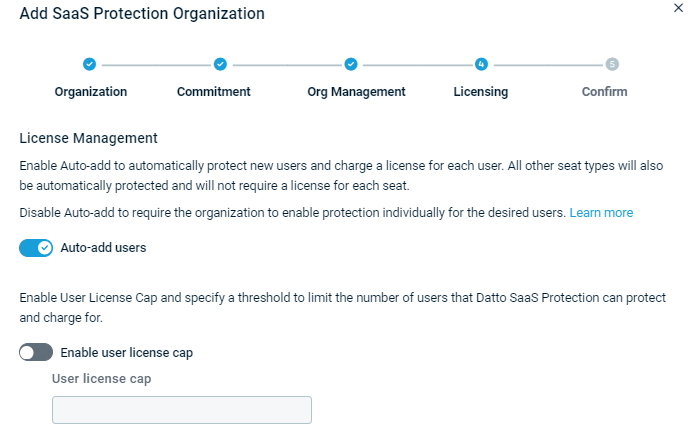
Licensing
On the Licensing dialog, you can choose enable Auto-add to automatically protect new users and enable a user license cap to prevent the organization from consuming too many SaaS Protection licenses. To make managing user licenses easier, it is recommended that you leave the Auto-add users toggle enabled.
- Auto-add users is enabled by default. You can disable auto-add by clicking the slider.
- To limit the number of licensed users that Datto SaaS Protection can protect, use the Enable user license cap slider and enter a value for User license cap.
- Click Next to proceed.
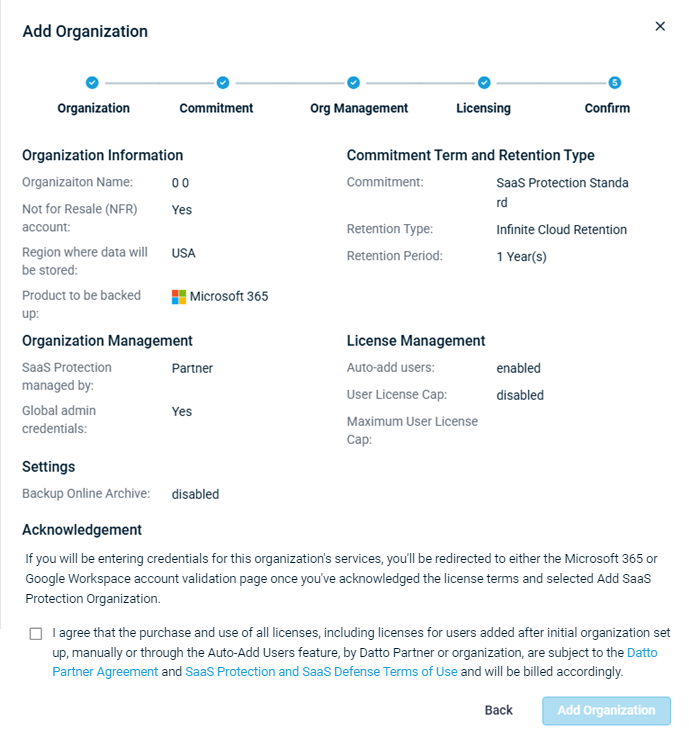
Confirm
Review the configuration of your organization and provide admin credentials.
- After reading the Acknowledgment section, check the box to agree.
- Click Add Organization.
- If Yes was selected for Do you have global admin credentials?, you will be redirected to outside of the Datto Partner Portal to provide those credentials.
For information about working with existing SaaS Protection organizations, see the article Exploring the SaaS Protection Status page.


