Using Kaseya Helpdesk
You can access online help resources and support services for all Kaseya products from the Kaseya Helpdesk.
 Online help
Before you submit a support request, take a moment to find information in our extensive online help and knowledge base resources.
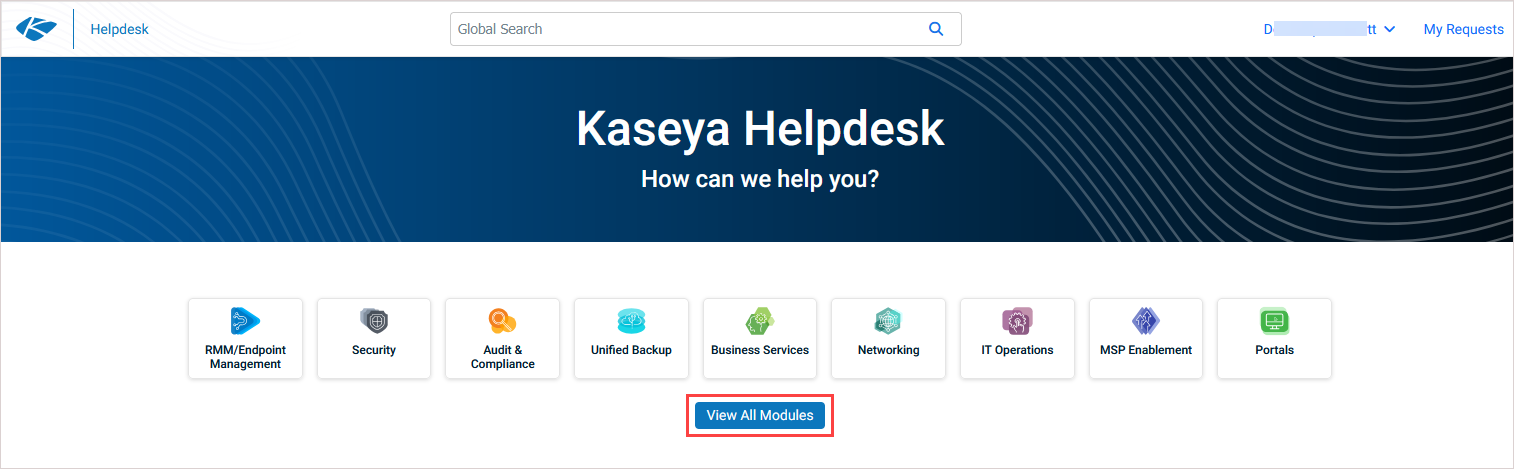
- In Kaseya Helpdesk, select the module you need help with by clicking View All Modules and selecting your module in the list.
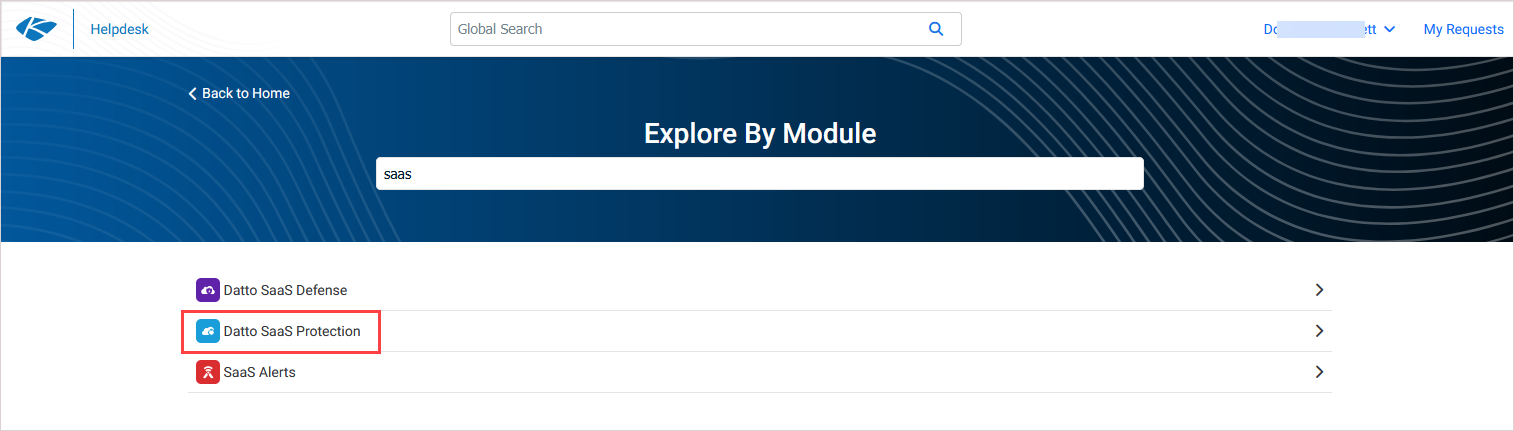
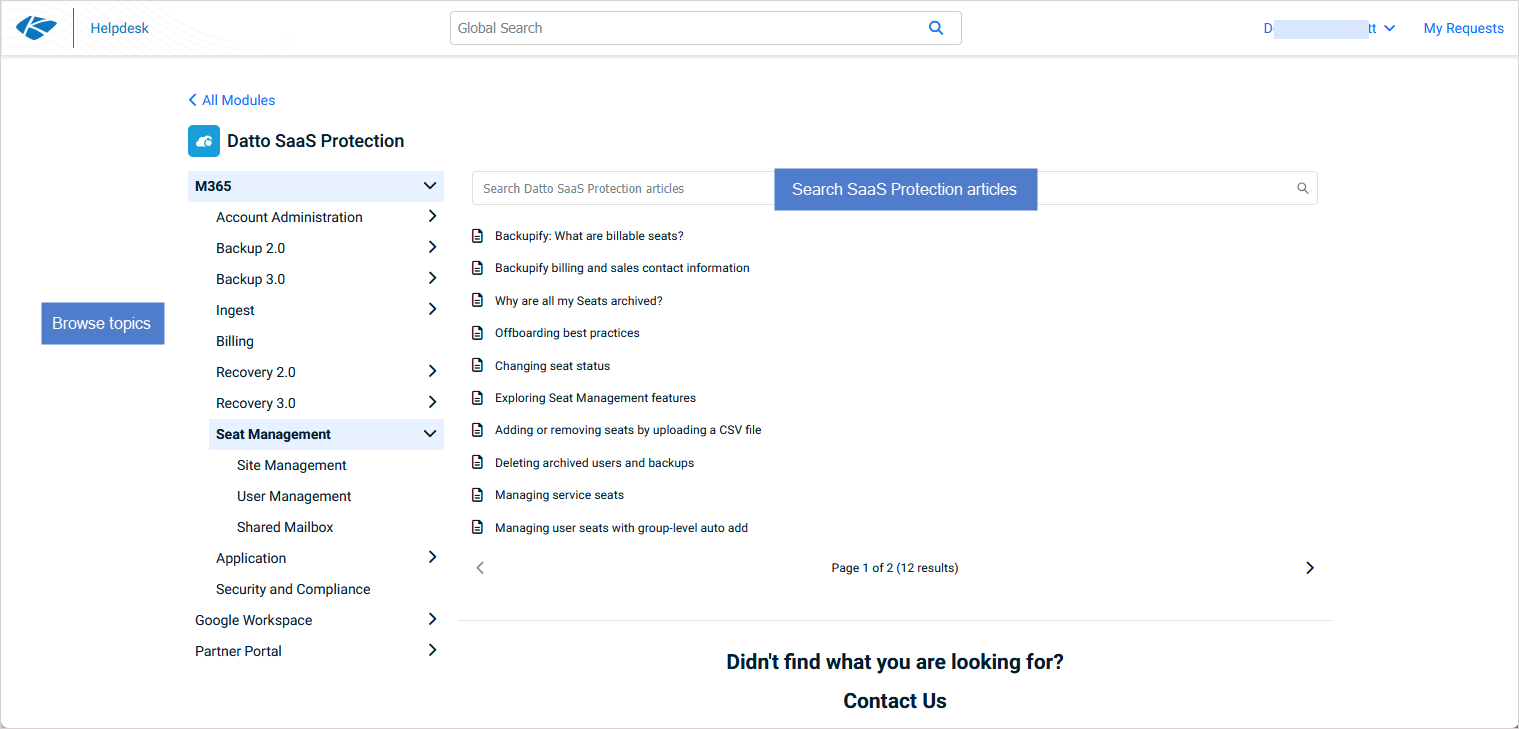
- Your module's home page displays, where you can browse topics or use the search bar to find articles.
Live chat
- In Kaseya Helpdesk, select the module you need help with by clicking View All Modules and selecting your module in the list.
- Your module's home page displays, where you can browse topic or use the search bar to find articles.
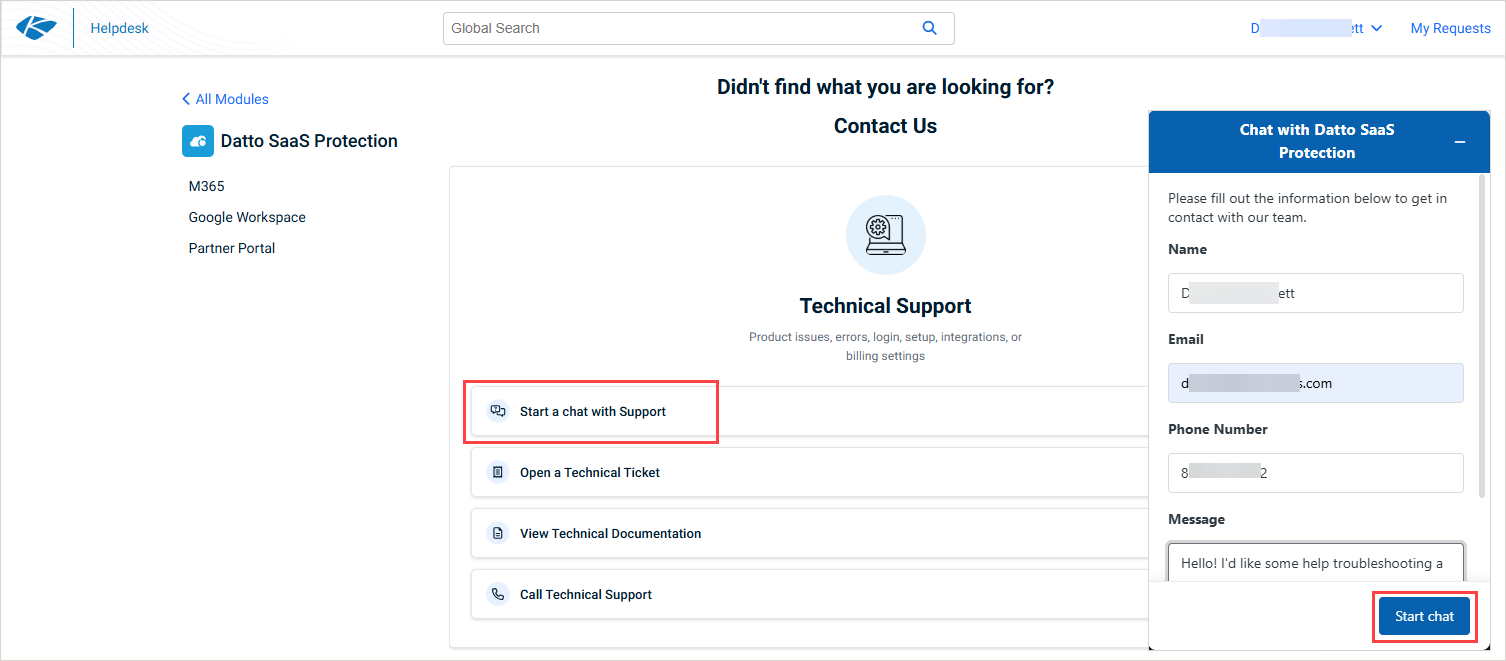
- If you need further support, scroll down to Technical Support and click Start a chat with Support.
- Enter the required information and click Start chat.
Support requests
You must log in to the Kaseya Helpdesk to be able to create a new support request or view existing ones.
Logging in
-
Go to the Kaseya Helpdesk login page.
- Select a login option and enter the required credentials.
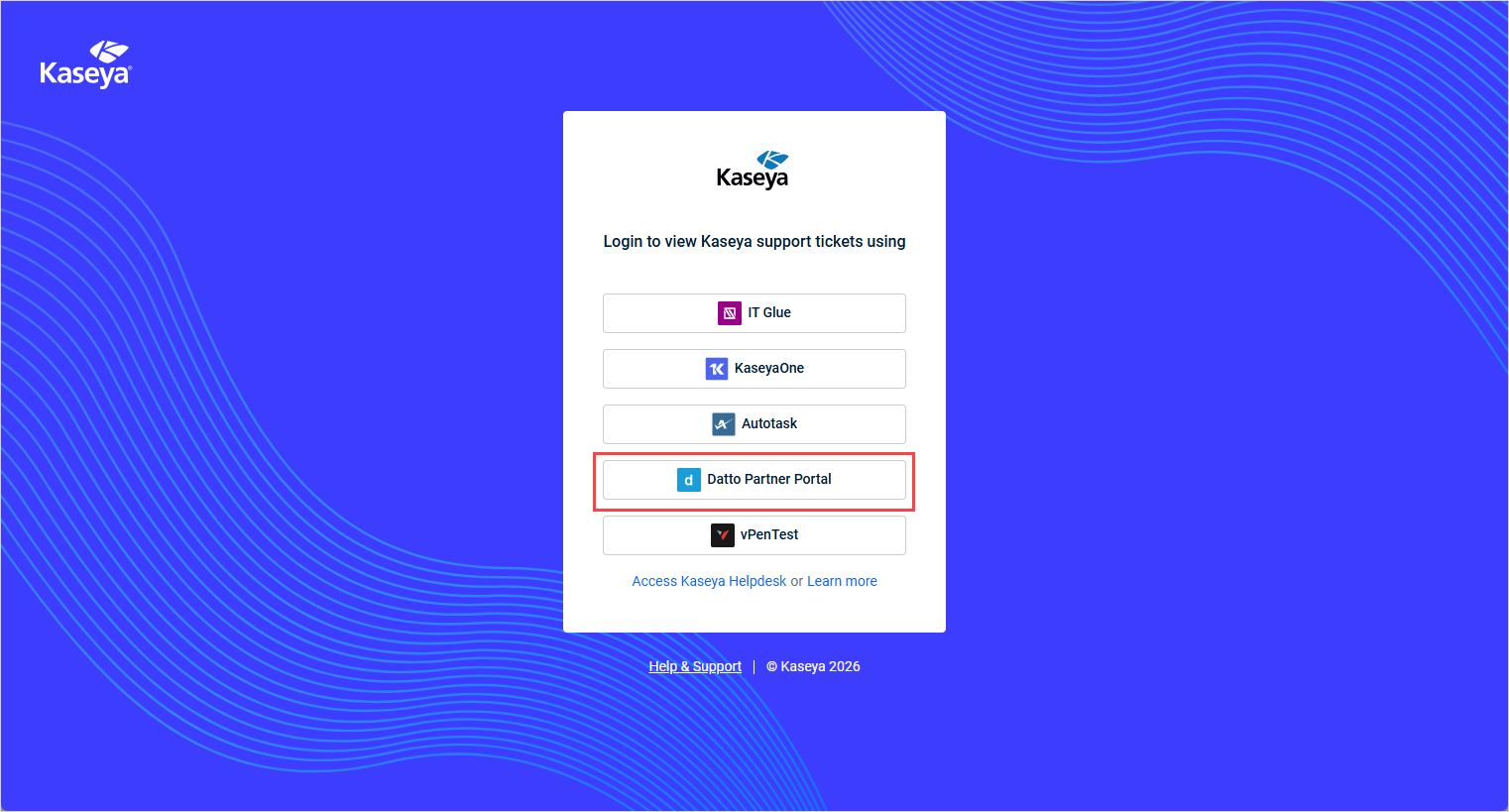
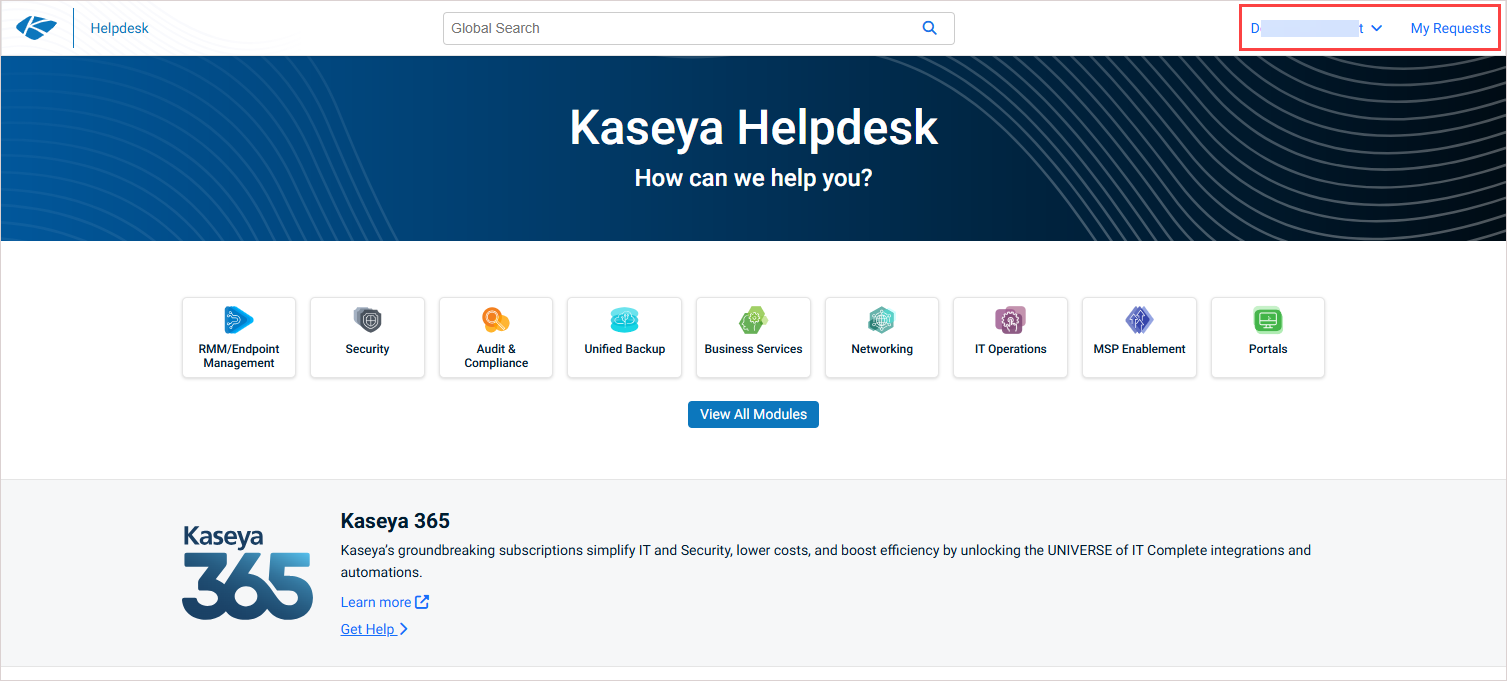
- You are logged in to Kaseya Helpdesk.
New request
- Once logged in to the Kaseya Helpdesk, select the SaaS Protection module by clicking View All Modules and selecting Datto SaaS Protection in the list.
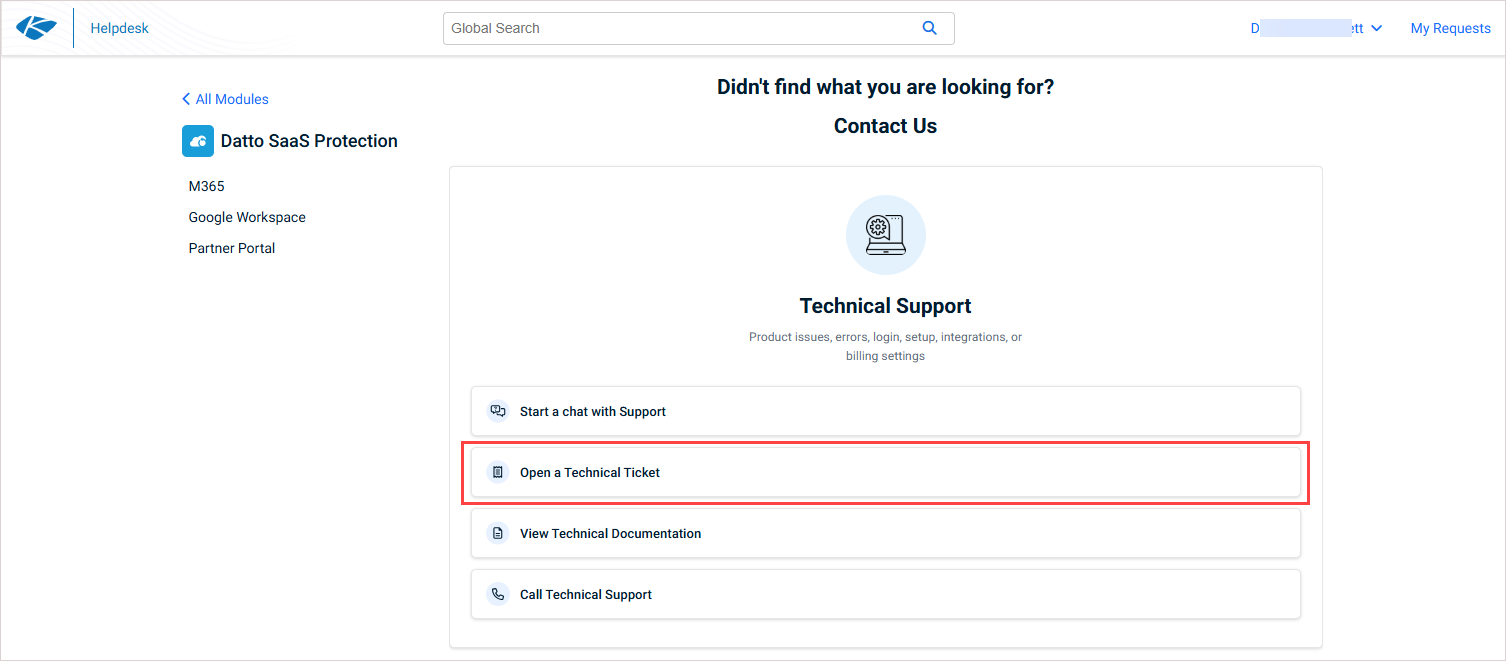
- On the Datto SaaS Protection home page that displays, scroll down to Technical Support and click Open a Technical Ticket.
- On the Complete a New Request page that opens, enter information as applicable, then click Submit to create the Support ticket.
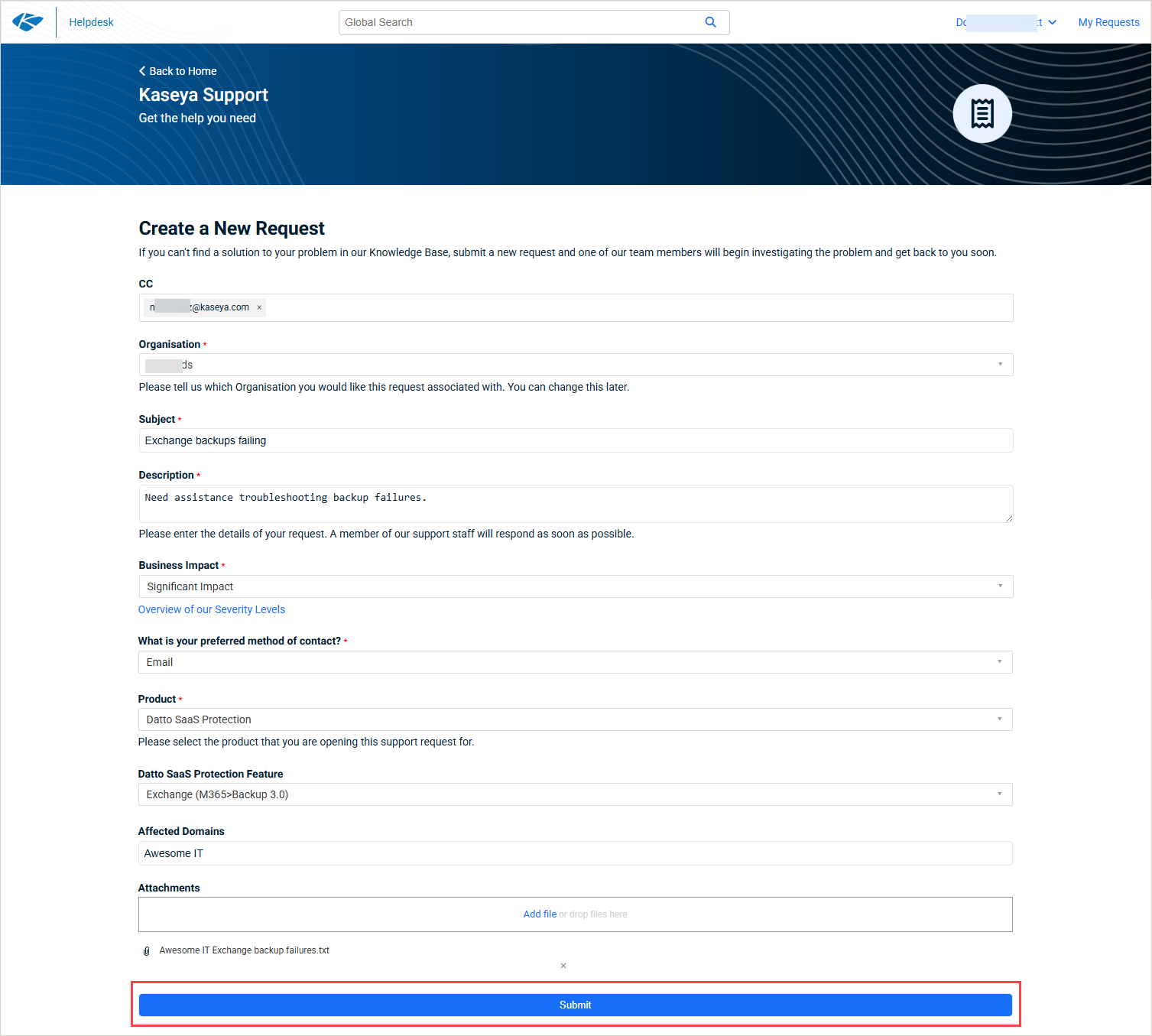
IMPORTANT Be sure to CC your account manager in all of your support tickets. If it’s a time sensitive request, they can assist with escalating the issue.
NOTE If you clicked Billing & Payments in the previous step, you'll be directed to chat with the Billing & Payments Assistant, where you can open a billing ticket.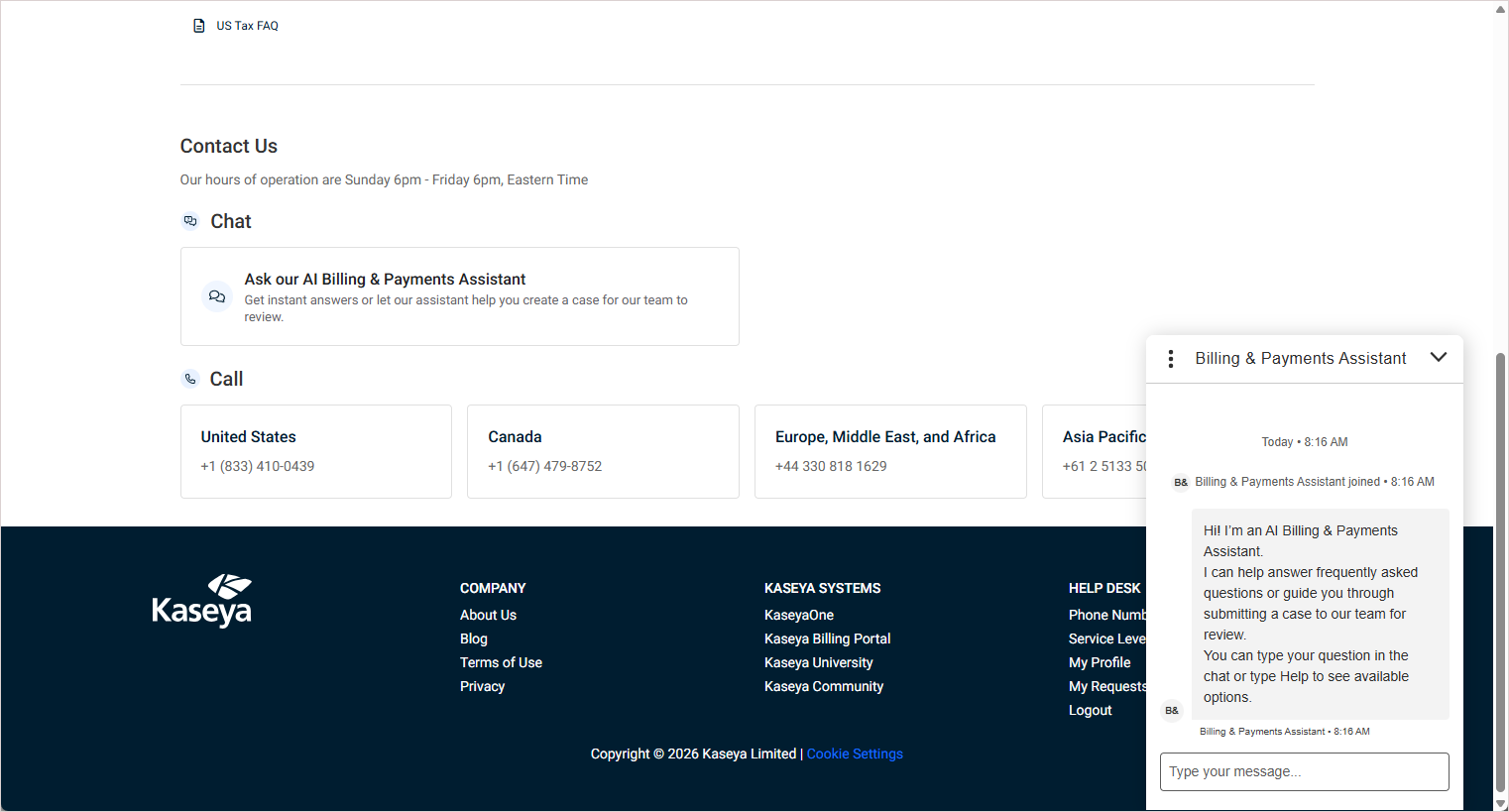
Existing requests
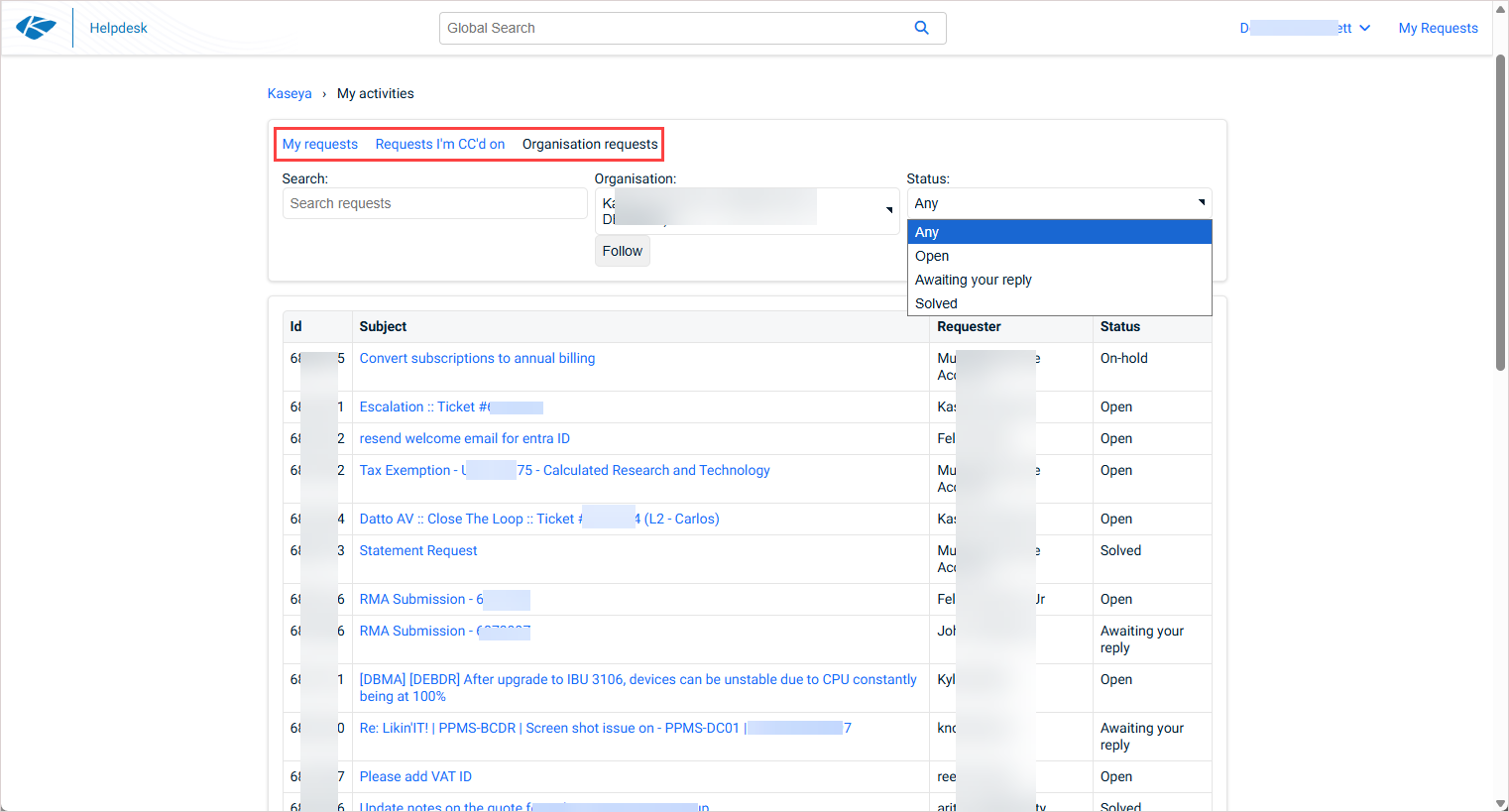
- Once logged in to the Kaseya Helpdesk, click My Requests in the upper-right corner of the page.

- You can opt to view requests assigned to you, requests you are CC'd on, or all requests in your organization by clicking My Requests, Requests I'm CC'd on, or Organisation requests.You can filter your requests by status and by using the search bar. To view a request, click the hyperlink in the Subject column.
FAQs
When should I submit a request (ticket)?
You should submit a request if you have encountered a software defect (bug). Refer to What is a defect (bug)?
What is a defect (bug)?
A software defect is an error or fault in the product that causes it to produce an incorrect, unexpected result or error message, or to behave in unintended ways. This may or may not have a business impact. The severity varies and is expressed in the ticket priority. Refer to What are the Support request (ticket) priority definitions?
How does the Support team confirm a defect?
When the Support team receives a defect ticket, they will attempt to reproduce the error and document the circumstances under which it occurs. They will attempt to find a workaround so that you can continue to use the product. They will then assess the impact of the issue on Kaseya's partners and assign an appropriate priority setting. Refer to How does the Support team determine defect priority?
Kaseya will make commercially reasonable efforts to resolve all defects.
How does the Support team determine defect priority?
When a defect is confirmed, it is given a priority. This is done by evaluating various factors. This ensures that defects are resolved in such a way that it reduces impact to Kaseya's partners.
The following factors are taken into account:
- Functionality: The level of functionality and/or service availability loss the defect creates.
- Quality of workaround: A measure of the ability to achieve business function without a fix in place.
- Number of incidents: The number of incidents associated with the defect.
- Detectability: How likely a partner will experience this behavior when using the product.
What are the Support request (ticket) priority definitions?
- Urgent: A system-wide issue or outage preventing major business functions for multiple users. Stops business. The use of the product is completely degraded.
- High: A time-sensitive technical issue or perceived defect that inhibits daily business workflows. The use of the product is significantly degraded.
- Medium: A standard service request, technical issue, or perceived defect that potentially inhibits business function. The use of the product is slightly degraded.
- Low: A non-urgent service request, technical issue, or perceived defect. The use of the product is not degraded. All enhancements.
Can I have my request (ticket) escalated?
Once a defect has been confirmed, the Support team will contact you and explain the priority assessment. If you disagree with the assessment, you can request that the Support team escalates the ticket based on the impact on your business. In addition to the Support team, you can also reach out to your Account Manager or Success Manager to discuss a possible ticket escalation.
How can I keep track of the progress of my request (ticket)?
You can keep track of your requests in the Kaseya Helpdesk. Refer to Existing requests in the Support requests section.
What happens if the issue I reported is a feature request or improvement?
If the Support team finds that the issue you reported is a feature request or improvement to the current functionality, they will direct you to request the new feature so they can understand your business case and also measure feedback from other partners.
Can I check SaaS Protection's service status?
You can check SaaS Protection's service status information on the publicly available Kaseya Status page. This site provides current system status for each Kaseya product and incident alert information. You have the option to subscribe to proactive email updates.


