Changes to EWS usage: troubleshooting error 114016
To address certain security issues, Microsoft has changed the way EWS usage is controlled in Exchange Online. For details, see this Microsoft article: The way to control EWS usage in Exchange Online is changing.
For some tenants, this change has resulted in EWS being blocked by default, causing backup failures.
Issue
Customers may encounter backup failures for Exchange users accompanied by an "HTTPClientError" (error code 114016) when SaaS Protection attempts to access Exchange Web Services (EWS).
Cause
An "HTTPClientError" (error code 114016) typically indicates that SaaS Protection was unable to access a mail site, folder, or file.
Resolution
Follow the steps below to identify and resolve the issue.
NOTE Some steps below are run with PowerShell. Kaseya support is unable to assist with PowerShell issues and recommends reaching out to Microsoft support for further assistance if needed.
 Step 1: Enable EWS for user mailboxes
Use any of these procedures to enable EWS for your user mailboxes:
To enable EWS for individual mailboxes using the Exchange Admin Center UI
-
Sign in to the Exchange Admin Center as an Exchange administrator.
-
Go to Recipients > Mailboxes.
-
Select the affected user’s mailbox.
-
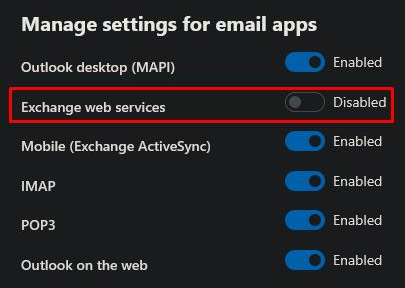
In the Mailbox Details pane, under the General tab, click on Manage email apps settings.
-
Enable Exchange web services.
 To enable EWS for all user mailboxes using PowerShell
-
Launch PowerShell and issue this command to connect to the Exchange Online service:
Connect-ExchangeOnline
-
Log in as the Global Administrator.
-
Issue this command to enable EWS for any user mailboxes where EWS is currently disabled:
Get-CASMailbox -ResultSize Unlimited | Where-Object {$_.EwsEnabled -eq $false} |
ForEach-Object {
Set-CASMailbox $_.Identity -EwsEnabled $true
}
To enable EWS for multiple user mailboxes by uploading a CSV file
-
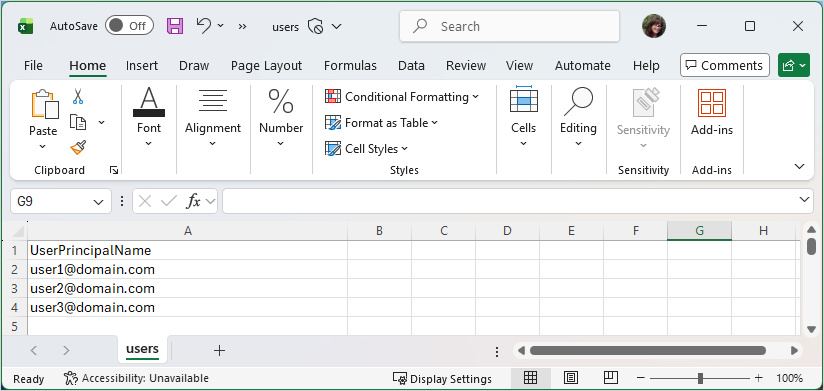
Create a CSV file called users.csv, containing a list of users in a column called UserPrincipalName:
-
Launch PowerShell and issue this command to connect to the Exchange Online service:
Connect-ExchangeOnline
-
Log in as the Global Administrator.
-
Issue this command to enable EWS for the users listed in your CSV file:
Import-Csv users.csv |
ForEach-Object {
Set-CASMailbox $_.UserPrincipalName -EwsEnabled $true
}
Step 2: Check/enable mailbox-level EWS access for the M365 tenant
-
Launch PowerShell and issue this command to connect to the Exchange Online service:
Connect-ExchangeOnline
-
Log in as the Global Administrator.
-
Issue this command to check whether EWS is enabled for the tenant:
Get-OrganizationConfig | Select EwsEnabled
-
If EWS is not enabled, issue this command to enable it:
Set-OrganizationConfig -EwsEnabled $true
Step 3: Check the application access policy
In Exchange Online PowerShell, issue this command:
Get-OrganizationConfig | Select EwsApplicationAccessPolicy, EwsAllowList, EwsBlockList
If the policy is set to EnforceAllowList, ensure the backup application is included in the EwsAllowList.
Step 4: Check for per-user overrides
In Exchange Online PowerShell, issue this command to check whether mailbox-level policies are overriding tenant-wide settings:
Get-CASMailbox user@domain.com | Select EwsApplicationAccessPolicy
Adjust any mailbox-level policies as required.
Step 5: Review conditional access policies
-
In Microsoft Entra Admin Center, navigate to Security > Conditional Access.
-
Ensure that there are no policies blocking the following:
Legacy authentication
Exchange Web Services (EWS)
Specific users or groups
Step 6: Review sign-in logs
-
In Microsoft Entra Admin Center, navigate to Monitoring > Sign-in logs.
-
Filter logs for the affected user and check for failed sign-ins.
-
Look for HTTP client errors and access blocked by conditional access policies.
-
Address any issues found.
Step 7: Check security defaults
In Microsoft Entra Admin Center, navigate to Properties > Manage Security Defaults.
If enabled, security defaults may block legacy authentication used by EWS. Disable any security defaults as required.


